








Watchers vs Request Participants in Jira: How to Add Watchers Automatically
“Watchers” and “request participants” get confused constantly, because on the surface they do the same thing — someone who isn’t the assignee gets notified when an issue changes. The difference is who they’re for and what they see.
The actual difference
Watchers are internal Jira users who want visibility into an issue’s activity — comments, status changes, field updates. Watching is Jira’s general-purpose “keep me posted” mechanism, and it works the same way across every issue type in every project.
Request participants exist specifically in Jira Service Management, on customer-facing requests. A request participant is someone — often a customer, sometimes an internal colleague — who gets the customer-facing notifications on a request: the portal-style updates, not Jira’s internal activity stream. The reporter of a JSM request can add colleagues as request participants directly from the customer portal, without needing a Jira license.
The practical rule of thumb: if the audience is internal Jira users tracking issue activity, you want watchers. If the audience is customers or requesters who should see the customer-facing view of a request, you want request participants. On a standard software or business project (not JSM), request participants don’t apply at all — watchers are your only mechanism.
How native watching works
By default, Jira automatically watches an issue for:
- The reporter (in most default configurations)
- The assignee, once assigned
- Anyone who manually clicks the Watch (bell) icon on the issue
That’s it. Anyone else who wants to follow an issue has to know it exists and manually click Watch, one issue at a time. There’s no native way to say “automatically watch every issue where the component is ‘Billing’ and the priority is ‘High’” — that rule simply doesn’t exist in Jira’s built-in feature set.
For a handful of issues, manual watching is fine. It breaks down once you need visibility to follow rules instead of individual clicks — a security team that needs to see every issue tagged with a specific label, a manager who wants automatic visibility into every high-priority bug in their component, or a compliance requirement that certain issue types are never modified without a specific group being notified.
Adding watchers automatically, based on rules
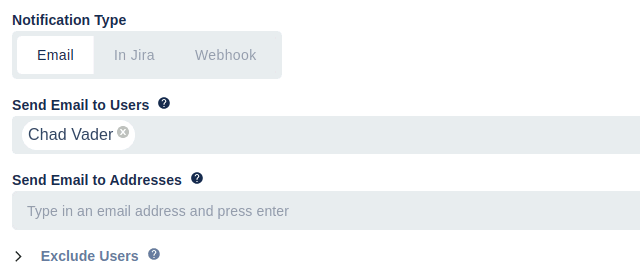
This is the gap Watch It is built to close. Instead of manual clicking, Watch It adds rule-based watching to Jira:
- Add Watcher Rules define criteria — components, priorities, issue types, JQL, or “current user” — and automatically add the configured users as watchers whenever an issue is created or modified and the criteria match. Set it up once; it applies to every matching issue from then on, including ones created in the future.
- Trackers watch a whole project by JQL or field conditions, rather than requiring you to configure watching issue-by-issue.
- Timed Trackers run a JQL query on a schedule (hourly, daily, whatever fits) and email the matching issues to a distribution list — useful for a digest of “everything that changed in this category today” rather than a live stream of individual notifications.
- A Watchers field lets you add watchers directly from the Create Issue screen, so the right people are subscribed from the moment an issue exists rather than added after the fact.
Setting up your first automatic-watcher rule
- Identify who needs automatic visibility and why. A specific team, a specific priority level, a specific label or component — be concrete about the criteria, not just “people who might care.”
- Decide the trigger. Do you want watchers added the moment an issue is created, or only when it’s modified to match certain criteria (e.g. priority raised to Critical)?
- Write the JQL or field criteria that captures exactly the issues you want covered — test it in Jira’s issue search first to confirm it returns the right set before wiring it into a rule.
- Configure the Add Watcher Rule with that criteria and the users or groups who should be added.
- Confirm on a live issue that matches your criteria that the right people were actually added as watchers, not just that the rule saved without an error.
Frequently asked questions
Can watchers see everything an assignee sees? Watchers see the same issue activity — comments, status changes, field updates — as anyone else with view permission on the issue. Watching controls notifications, not visibility; if a user couldn’t already see the issue, watching it doesn’t change that.
Do request participants need a Jira license? No. Request participants are a Jira Service Management concept for the customer portal, and customers interacting with a service desk don’t need a full Jira license.
Can I automatically add watchers based on a JQL query in native Jira? No — native Jira has no rule engine for automatic watching based on criteria. The closest native option is manually clicking Watch on each issue, or a custom-built Automation rule that adds a watcher as an action, which requires admin-level rule authoring rather than a project-admin-managed feature.
What’s the difference between a Tracker and an Add Watcher Rule in Watch It? An Add Watcher Rule adds specific users as Jira watchers when criteria match, so they get Jira’s normal watcher notifications. A Tracker watches a project by JQL directly, without necessarily adding individual watchers to each issue — useful when you want project-level visibility rather than per-issue watcher lists.
See also: Watch It vs Notification Assistant for Jira · Watch It features · Watch It use cases.