








Important. This app must be used with the accompanying Google Chrome extension: Comment Security Default on the Chrome Web Store. If the Chrome extension is not present then the defaults will not be set and the coloring will not be applied.
Comment Security Default for Jira Cloud lets administrators decide what the visibility on a new comment should default to, instead of leaving every comment “viewable by all users”. It runs as a Forge app paired with a Google Chrome extension that applies the configured default and coloring to the comment field in the browser. Both components are required — without the Chrome extension, defaults are not set and the coloring is not applied.
The allows you to set the default for new Comments as per Space or global configurations. These configurations allow you to set a default visibility on a per-group basis with an optional default for those not covered by the per-group configurations (if there are any). The apps offers JSM/CSM support, and comment-field coloring. Jira cloud works differently than data center, so there are not comment fields on attachments, work logs, Work Item links, edits, or bulk edits. There are comment fields on transitions, and you can now set a default for these — see the Transition Defaults section below.
Chrome Extension
Comment Security Default for Cloud requires a companion Chrome extension. The Forge app handles the configuration UI and publishes which default should be used for the current user, Space, and comment box — but Forge is not allowed to restyle or pre-fill the native comment editor. The Chrome extension is what reads the published configuration in the browser and applies it to the comment field.
Without the extension, both the default visibility and the coloring are skipped — comments fall back to standard Jira behaviour.
Install it from the Chrome Web Store on every browser that should pick up the defaults: Comment Security Default — Chrome Web Store.
The Forge app detects whether the extension is loaded on the current page; if it isn’t, it shows a message in the configuration page, prompting the user to install it. It doesn’t have a warning in the Work Item pages.
How does Comment Security Default for Jira Cloud work?
Once both the Forge app and the Chrome extension are installed, two things happen for every comment in your Jira Cloud site:
- The Forge app determines which configuration applies (Space first, then global; group-specific first, then the default configuration) and publishes the resulting default visibility for the current user, Space, and comment box.
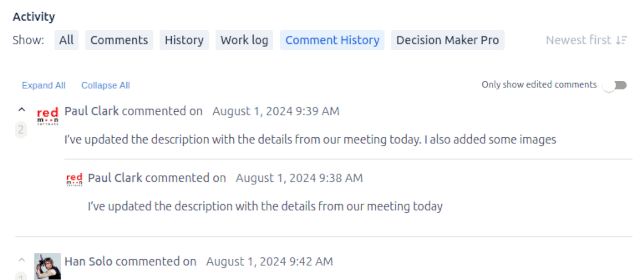
- The Chrome extension reads that configuration, sets the default visibility on the comment, and applies the background and border color to the comment field so the user can see at a glance whether their next comment will be public or restricted.
If the Chrome extension is not installed on the browser, the Forge app still publishes the configuration but nothing is applied to the comment field, defaults are not set and coloring does not appear.
Data storage: Configurations are stored in Forge storage inside your Atlassian Cloud instance. Comment Security Default does not send comment content, user data, or configurations to any Redmoon Software server.
Global Configuration
The global configuration applies to every Space in your site, unless a Space has its own configuration that takes precedence.
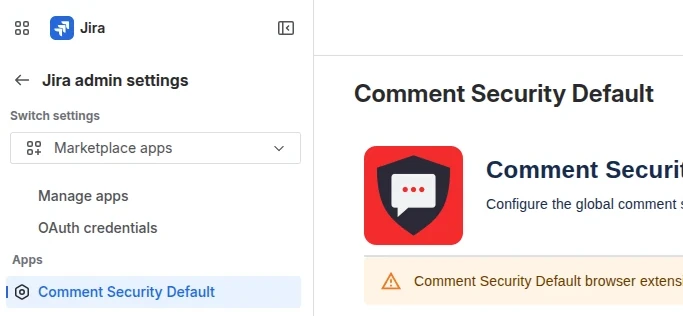
Open Apps → Manage apps → Comment Security Default in your Jira Cloud site to open the global configuration page.
The page lists every configuration in priority order. There are two kinds of configuration:
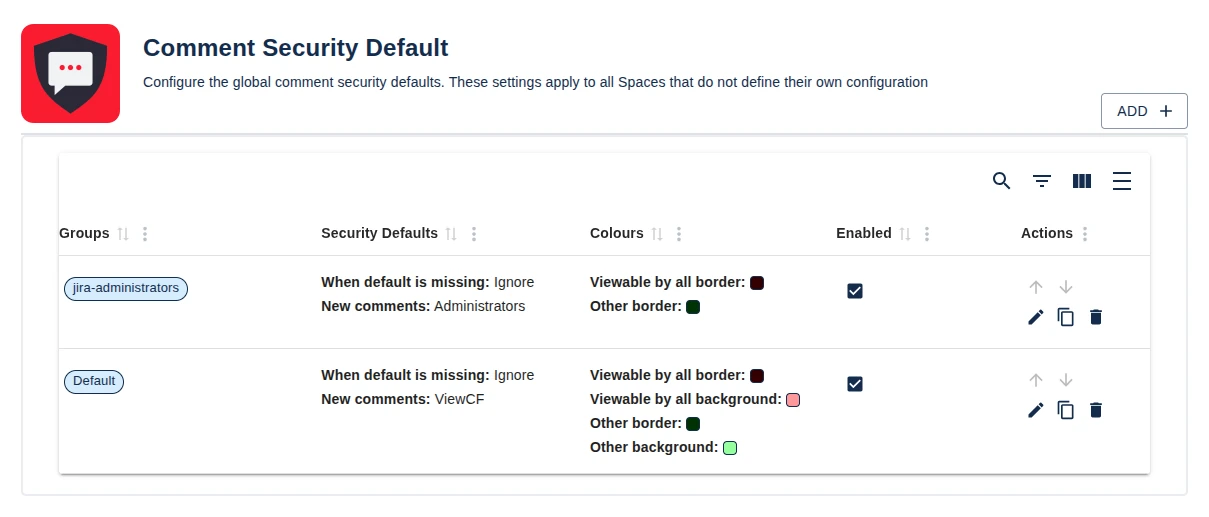
- Group configurations — only apply to users in one or more named user groups.
- Default configuration — applies to everyone the group configurations did not match. There is at most one default configuration per scope.
For each row you can move it up or down to change its priority, edit it, duplicate it, or delete it. Click Add to create a new configuration.
The configuration that is used for a comment is chosen like this:
-
Config is blank
-
If there is a Space configuration and it is enabled then:
- Use that as the config
-
Otherwise if there is a global configuration and it is enabled then:
- Use that as the config
-
If there is a config:
- For each non-default line in the config, top to bottom:
- If the current user is in one of the configuration’s groups, use it.
- Otherwise, if the Space has a default configuration, use it.
- For each non-default line in the config, top to bottom:
Important: If you want to target user groups, the underlying Jira setting must allow it. Go to System → General configuration → Comment visibility and set it to “Groups & Space Roles”.
Add / Edit Configuration
Adding or editing a configuration opens a page with four sections, shown one after another.
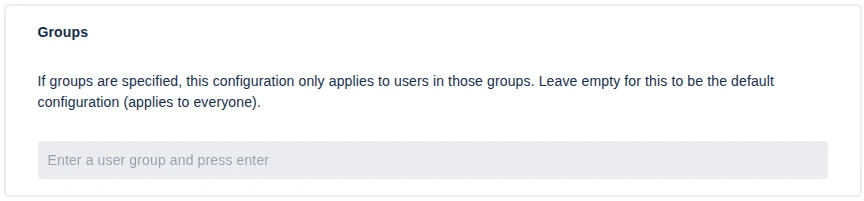
Groups
The Groups zone has a single field. Enter one or more user groups; the configuration only applies to users in at least one of those groups. Leave Groups empty to make this the default configuration that applies to everyone the group configurations did not match.
Security Defaults
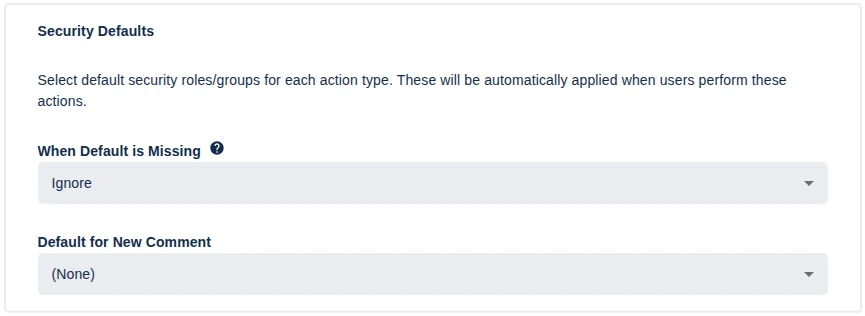
The Security Defaults zone has two fields:
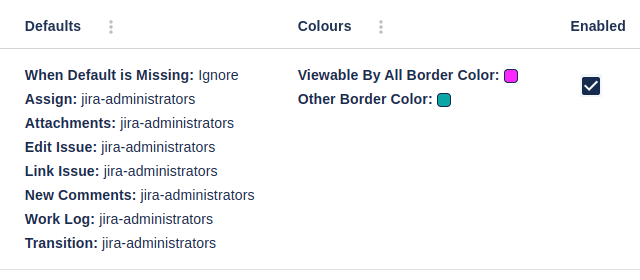
- When Default is Missing — controls what happens if the role or group named in the default is not available to the current Space or user. The options are:
- Ignore — fall back to “viewable by all users”.
- Prompt Selection — opens the security selector and leaves it open. The user then needs to select one
- Default for New Comments — the role or group that new comments default to.
Edit-Work Item defaults, attachment defaults, link defaults, and work-log defaults from the Data Center version are not present in the Cloud version because Jira no longer has comments in those locations.
Color Comment Fields
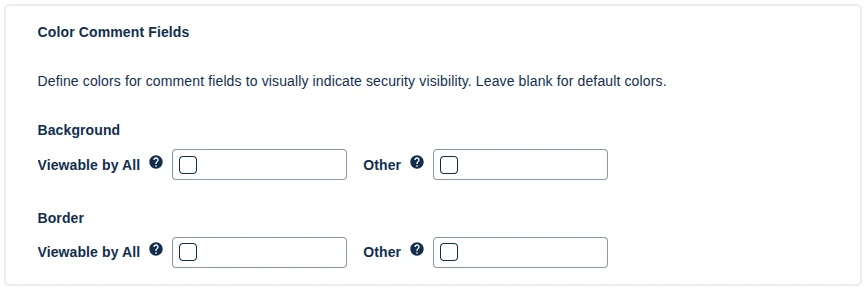
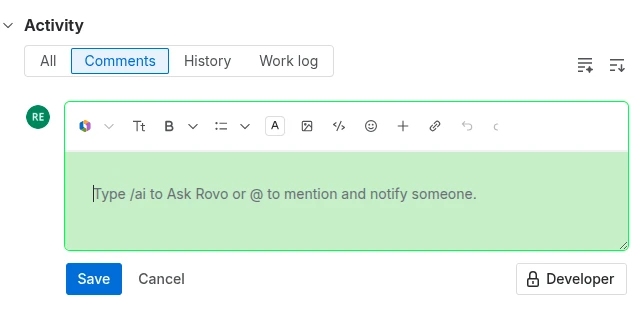
Comment coloring highlights whether a new comment will be viewable by all users or restricted. Pick a background color and/or border color for each case. The Chrome extension is what applies these colors to the comment field in the browser, so coloring only appears for users who have the extension installed.
The image below is an example of a comment field colored
Colors are stored on the configuration. If you use multiple configurations, each one needs its own colors set.
JSM and CSM
The JSM and CSM zone has a single toggle — Enable Security Defaults for JSM and CSM — which defaults to on. When enabled, this configuration applies to comments in Jira Service Management and Customer Service Management Spaces in addition to standard Jira Spaces.

Transition Defaults
Use this section to configure default comment security levels specifically for your workflow transition screens.
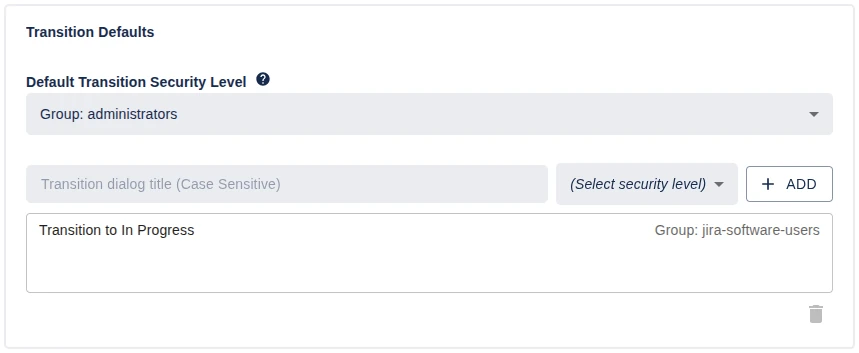
The Default Transition Security Level dropdown sets the fallback security level. The app applies this default to any transition comment if the dialog’s title does not match any of your custom rules listed below it.
Because comment behaviors are linked directly to the specific title of the pop-up window, you can set unique security defaults for different transitions.
To map a security level to a specific transition dialog:
- Identify the exact dialog title: Note the exact title of the transition pop-up window in your workflow.
- Enter the title name: Type this title into the Transition dialog title field. Note that this field is case-sensitive.
- Select and save: Choose your desired security level from the dropdown and click Add.
- Handle multi-language setups (Optional): If your team views the dialog in multiple languages, create a separate entry for each localized language title.
Example: If your pop-up window is titled “Transition to In Progress”, enter exactly Transition to In Progress into the title field, map your level, and click Add. If a match is found when a user transitions a Work Item, your custom default is applied; otherwise, it falls back to the global default.
Space Configuration
Every Space can have its own configuration. The page looks and behaves exactly like the global configuration page — same table, same Add/Edit form — just scoped to one Space.
Open the Space, then go to Space settings → Apps → Comment Security Default.
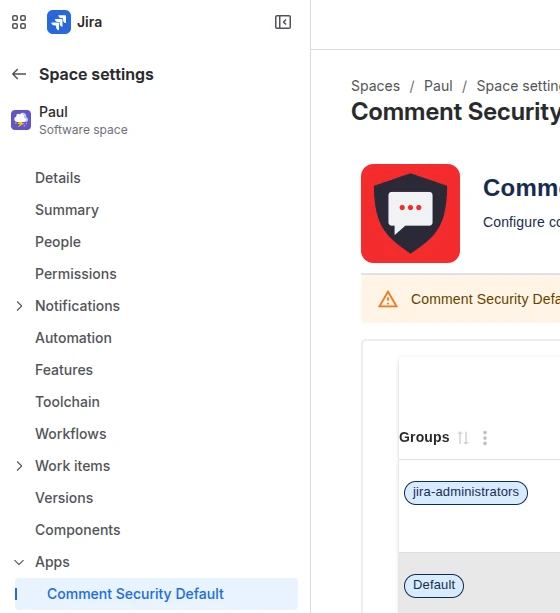
Space configurations take precedence over global ones. If no space configuration matches the current user (and there is no Space-level default configuration), the global configurations are checked using the same precedence rules. v