








Jira Custom Fields Explained: Types, Scope, and Best Practices
Every Jira team eventually needs a field the built-in Summary, Description, Assignee, and Priority set doesn’t cover — a cost center, a customer tier, an internal risk score. That’s what custom fields are for. But native Jira’s custom-field model has two structural limits that catch teams out once they’re relying on it at scale.
How native Jira custom fields work
A Jira system administrator creates a custom field from Jira Settings → Issues → Custom fields. Native fields support several types, including:
- Text (single-line, multi-line/paragraph)
- Number
- Date / Date-time picker
- Select lists (single or multiple choice)
- User picker (single or multiple user)
- Labels
Once created, a field is attached to one or more screens via field configuration schemes, which control which projects and issue types actually display it. This is powerful, but it’s also the first limitation: custom field creation is global and admin-only. A project admin who wants a new field for their own project has to raise a request to whoever holds Jira system-admin rights — they can’t just add one themselves.
The two gaps native custom fields don’t cover
1. No true project-level scope
Native Jira fields are created globally and then shown or hidden per project via configuration schemes — but the field itself still exists as one global object. There’s no first-class concept of “a field that belongs to and lives only within this one project,” managed by that project’s own admins without a system-admin field-creation step.
2. No field-level security
This is the bigger gap for many teams. Native Jira has issue-level permissions (who can view or edit the issue) but no way to say “this specific field, on this issue, should only be visible to Finance.” If a field like “Contract Value” or “Internal Risk Notes” is on an issue, everyone who can see the issue can see that field — there’s no native mechanism to hide one field from part of your audience while showing the rest of the issue normally.
For sensitive data — compensation figures, compliance flags, customer PII, anything with a “need to know” requirement — this means native Jira forces an uncomfortable choice: either put the sensitive data in a separate, permission-locked project (fragmenting your workflow), or accept that anyone with issue access sees everything on it.
What project-scoped, secured fields need
- Project-level field creation a project admin can do themselves, without a system-admin ticket.
- Field-level read and write security — a field visible to one group, editable by a smaller group, and invisible to everyone else, independent of the issue’s own permissions.
- JQL searchability, so a secured field doesn’t become a dead end for reporting and filtering.
- Validated field types beyond plain text — so a “Budget” field actually enforces numeric input, and a cascading field only offers valid downstream choices.
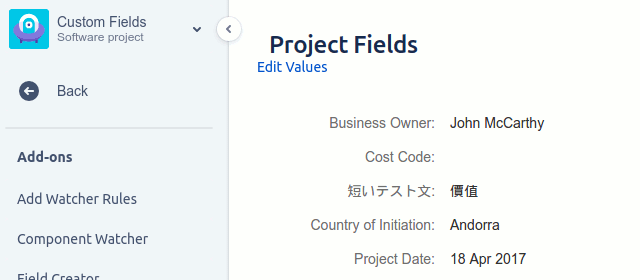
This is exactly what Custom Fields for Jira adds. Fields can be created at the global or project level, with typed, validated field types (Date, Label, List, Number, Rich Text, String, User) and per-field Visible To and Editable By group lists — so a “Cost Center” field can be visible only to Finance while the rest of the issue stays visible to the whole team. Fields with “Use JIRA Custom Field” enabled mirror their value into a standard Jira field so they stay searchable with JQL.
Choosing field scope and type: a quick decision guide
- Does this field only make sense in one project? If yes, make it project-scoped rather than global — it keeps other projects’ field lists clean and puts ownership with the project’s own admins.
- Does this field contain anything sensitive — cost, compliance status, personal information, anything with a “need to know” audience? If yes, it needs field-level security, not just issue-level permissions.
- Pick the narrowest type that fits. A “Priority Tier” field should be a List, not free text — validated types prevent the inevitable drift of typos and inconsistent values that make a text field useless for reporting six months later.
- Decide if it needs to be searchable in JQL now. If reporting or filtering on this field is likely, enable JQL search from the start rather than retrofitting it later.
Frequently asked questions
Can native Jira restrict who sees a specific custom field’s value? No. Native Jira permissions operate at the issue level, not the field level — anyone who can see the issue sees every field on it. Restricting a single field to a subset of viewers requires a dedicated field-security feature.
Can a project admin create a custom field without system-admin access? Not natively — custom field creation in standard Jira requires Jira system-administrator rights, regardless of which project the field is meant for.
Can custom field values be searched with JQL? Native custom fields are searchable with JQL by default. For apps that add their own field types, check whether the app mirrors the value into a standard Jira field for search — Custom Fields for Jira does this via its “Use JIRA Custom Field” option.
Is Custom Fields for Jira available on Data Center? Yes — Custom Fields for Jira ships both a Cloud edition and a Data Center edition, with the same field-security model on both.
See also: Custom Fields vs Deviniti Dynamic Forms · Custom Fields user guide · Custom Fields reviews.