









How to Create Reusable Issue Templates in Jira
If you’ve ever typed the same bug-report structure, the same sub-task checklist, or the same story description into Jira for the tenth time, you’ve already asked the question this article answers: how do you make a Jira issue reusable?
The short answer is: natively, you mostly can’t. Jira does not ship with a built-in issue-template feature. This trips up a lot of teams who assume it must exist somewhere in Project Settings, because almost every other part of Jira is this configurable.
The three native workarounds — and where each one breaks
1. Cloning an existing issue
The most common workaround is picking an old issue that has roughly the right shape and clicking Clone. Jira duplicates the summary, description, and most fields onto a new issue.
This works for a single one-off copy. It breaks down as a template strategy because:
- You’re always cloning from whatever the “reference” issue happens to be today — if someone edits or closes it, your template silently changes or disappears.
- Sub-tasks don’t always clone the way you expect, and linked issues usually don’t clone at all.
- There’s no way to see, at a glance, “here are our five approved templates” — you’re relying on institutional memory of which old ticket to go copy.
2. Team-managed project description defaults
On a team-managed project, you can go to Project settings → Issue Types, select an issue type, and set a default description. Every new issue of that type starts with that boilerplate text pre-filled.
This is a real, useful native feature — but it’s narrow:
- It only pre-fills the description field, not the summary, assignee, priority, custom fields, or sub-tasks.
- It’s one default per issue type per project. You can’t have three different bug-report templates for three different bug categories.
- It doesn’t exist at all on company-managed projects in the same way.
3. Automation rules
Jira’s built-in Automation can create issues with a set structure — “when X happens, create a sub-task with this summary and these fields.” Used well, this gets you most of the way to a real template system.
Where it breaks down: automation rules are built and maintained by whoever has admin rights to the automation console. A project admin who wants to add a new template, or tweak an existing one, generally can’t do it themselves — they need to find whoever owns the automation rules. For a team publishing or revising templates often, that’s a bottleneck, not a workflow.
What a real template system needs
Once you look at where the native options break down, the requirements for genuine reusable templates become clear:
- A declarative template a project admin can create and edit without writing an automation rule from scratch.
- Support for sub-task and linked-issue structure, not just a pre-filled description on the parent issue.
- A trigger model — apply manually when needed, or automatically on issue creation or a workflow transition.
- A way to apply a template retroactively to issues that already exist, not just new ones.
- Bulk application — run a template against every issue matching a JQL query, instead of one at a time.
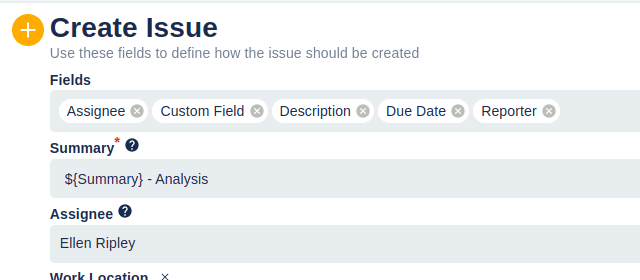
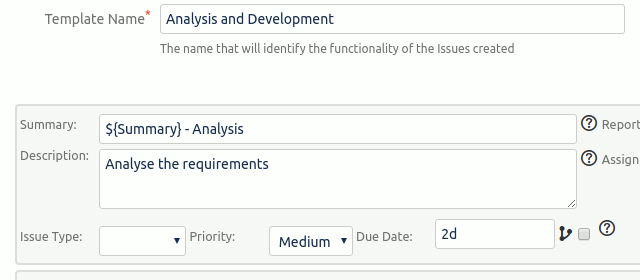
This is exactly the gap STM Issue Templates is built to fill. Templates are managed through a UI by project admins (no automation-rule authoring required), support full sub-task and linked-issue hierarchies — including cascading templates that go epic → story → sub-task — and can fire manually, automatically on creation or transition, or in bulk against a JQL query. STM also has a dedicated Update Templates feature for the case native Jira has no answer for at all: modifying issues that already exist, not just creating new ones.
Building your first template, step by step
Whichever tool you use, the process looks roughly like this:
- Pick one recurring issue shape you create often — a specific bug-report structure, a standard onboarding checklist, a sub-task set for a release. Don’t start with your most complex workflow.
- List every field that should be pre-filled: summary pattern, description, priority, labels, and any custom fields your team relies on.
- Decide the trigger. Should this template be applied manually by whoever needs it, or should it fire automatically — say, whenever a new issue is created in a specific project, or when an issue transitions to “Ready for QA”?
- Decide the structure. Does this issue need sub-tasks? Linked issues? A multi-level cascade (an epic that spawns stories that each spawn sub-tasks)?
- Build it, then test on a throwaway issue before rolling it out to the team, and confirm field values, sub-tasks, and any automation trigger all behave as expected.
Frequently asked questions
Does Jira have any native issue-template feature? No. Jira Cloud and Data Center have no built-in issue-template feature. You can clone an existing issue, but that’s a one-off action — it doesn’t maintain a reusable, structured template or rules for when it should run.
Can I template sub-tasks, not just the parent issue? Native cloning handles this inconsistently. A dedicated templating app like STM treats sub-task hierarchies as a first-class concept, including cascading templates.
Can I apply a template to issues that already exist? Not natively, and not with a simple clone. STM’s Update Templates feature is built specifically for modifying existing issues from a template, not just creating new ones.
Is this different from Jira automation rules? Automation rules can approximate a template system, but every change requires editing the rule — usually by whoever has automation-console access. A dedicated template app lets project admins manage templates directly through a UI.
See also: STM vs ScriptRunner for Jira · STM vs Deviniti Issue Templates · Jira Issue Templates library — 20+ copy-and-paste template examples.